
Designers
Designing haptics without writing code
Design a haptic on your Mac, feel it on your iPhone while you work, and share it with other designers, without writing Core Haptics code.
The gap between an idea and a feel
Core Haptics plays a haptic from code or from an AHAP file. AHAP is a JSON-like text format, and Apple says you can write it in Xcode or any text editor (Apple’s AHAP reference). The format is the easy part. The loop around it is slow.
You edit a number. You run the app on a device. You feel the result and you edit the number again. The Simulator cannot help, because it has no haptic interface (Apple). Every guess needs an iPhone in your hand and a developer at the keyboard.
Haptrix closes that loop. You place events on a timeline, shape them with dials and curves, and press Play on your Mac. The pattern plays on your iPhone while you work. When it is right, you export it or publish it for other designers.
This article follows one small haptic from idea to published page. It is a click followed by a soft hum, and you can download it as click-and-hum.ahap to start from the finished pattern.
What a haptic is made of
A haptic is built from a few parts.
- A transient is a brief impulse at one moment, like a tap.
- A continuous event lasts for a while, like a hum.
- Intensity is how strong an event is.
- Sharpness is how it feels: low values are round, high values are crisp.
- An envelope shapes how one event starts and ends.
- A parameter curve changes a value over time across the whole pattern.
- Audio plays alongside, if you want it to.
Apple’s file format stores all of this as data, and AHAP files explained reads it key by key. You do not need that article to follow this one.
Start with the moment, not the buzz
Before you open the editor, write one sentence about the moment you are designing. Ours is: a long press is confirmed, with a crisp click followed by a short, soft hum.
That sentence gives you a trigger, a meaning and a length. Apple’s guidance asks for exactly this: a clear, causal link between a haptic and the action that causes it, and short haptics for discrete events. This one lasts well under a second.
Place the events
Open Haptrix and start a new haptic. The editor has three parts. The feel view across the top shows what the pattern feels like. The tracks below it hold the events, one track for each kind of event. The inspector on the right edits whatever you select.
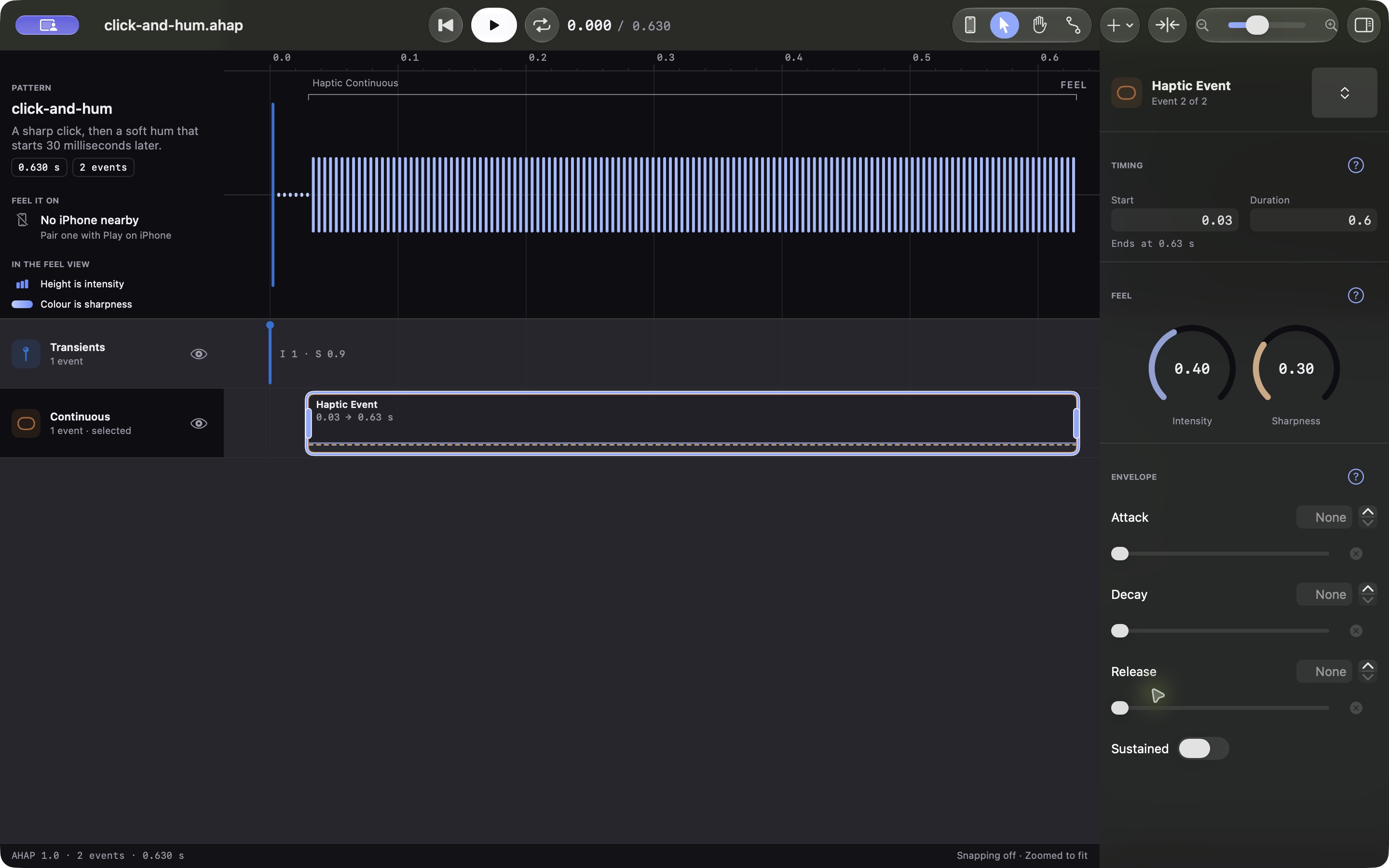
Put the playhead at the start. Choose Add, then Haptic Transient. Haptrix adds a transient at the playhead and selects it.
Now add the hum. Choose Add, then Haptic Continuous. Haptrix adds a continuous event at the playhead, one second long. Select it and open the inspector’s Timing section. Type 0.03 for the start and 0.6 for the duration.
Your hum now begins 30 milliseconds after the click and runs for 0.6 seconds.
Shape them
Select the click. The inspector’s Feel section has two dials, Intensity and Sharpness. Drag a dial, or use the arrow keys or the scroll wheel. Set the click to intensity 1.0 and sharpness 0.9. These values give the opening tap a strong, crisp character.
Select the hum and set intensity 0.4 and sharpness 0.3. The second event is quieter and rounder than the opening tap.
A continuous event also has an Envelope section, with Attack, Decay and Release sliders and a Sustained switch. The downloadable example leaves these at their defaults. To try a softer start and finish, turn Sustained on and adjust Attack and Release. Each slider runs from 0 to 1; these are normalised values, not seconds.
Here is where each control belongs.
| You want | Change |
|---|---|
| A stronger or weaker event | Intensity, in Feel |
| A rounder or crisper event | Sharpness, in Feel |
| A hum that fades in or out | Attack and Release in Envelope, with Sustained on |
| A change over time across the whole pattern | A parameter curve: Add, then Parameter Curve |
| A sudden step across the whole pattern | A dynamic parameter: Add, then Dynamic Parameter |
Tip
A curve belongs to the pattern, not to one event. Apple says it directly: “Parameter curves apply to all events in a pattern; it isn’t possible to apply one to only a single event.” To fade the hum without touching the click, start the curve at 0.03 seconds. The inspector’s “Curves over this event” list shows every curve that overlaps the event you selected.
Read the feel view
The feel view draws the pattern as bars. A bar’s height is how strong the pattern feels at that moment, and its colour is how sharp. When the pattern plays, the bars light up as the playhead passes them.
Use the view to see what you cannot yet feel. You will spot a gap you did not mean to leave, two events that overlap, or a bar taller than you intended. Every haptic can also be seen and heard, so you can check a pattern before you feel it.
Feel it on your iPhone
Pair your iPhone once. Open the pattern on your Mac and choose Play on iPhone. Haptrix needs to be open on the iPhone. The first time, the iPhone shows a six-digit code and you type it on your Mac.
After that, Play plays the pattern on your paired iPhone, from the playhead. Press Space to play and pause. The Feel it on panel in the track column says where Play will play.
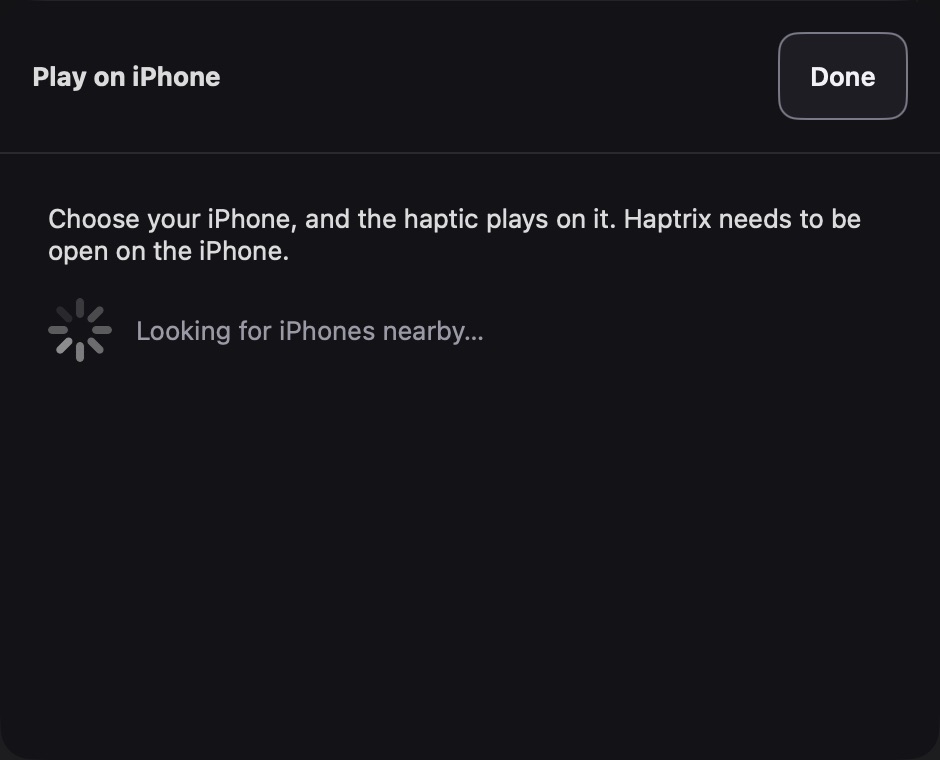
On the iPhone itself, Play plays the pattern on the device, and Feel this event plays only the event you have selected. Use that to tune one tap without playing the whole pattern.
Note
The Mac’s own hardware cannot play your haptic. A Mac trackpad plays three fixed system taps, not a designed haptic. An iPad has no haptic engine, and Apple Pencil Pro and the Magic Keyboard give fixed taps only. With no iPhone paired, Haptrix shows and sounds the pattern. A game controller with haptics plays the whole haptic, and Play uses it when no paired iPhone is near.
Change one thing at a time
Change a single value, play the pattern, and write down what you felt. Every change can be undone, so you can step back to the version you liked.
If your haptic follows a sound, you can start from the sound. Choose Add, then Beats from Audio or Video. Haptrix finds the beats in a recording and puts a tap on each one. AutoTrace adds continuous haptics that follow how loud the recording is.
Take it out of the editor
When the pattern feels right, export it. The Export menu offers five formats.
- AHAP File, the pattern as Core Haptics reads it.
- Haptrix Document, a package that keeps the pattern and its audio together.
- Zip Archive, the pattern and its audio in one file.
- Swift Code, Swift that builds the pattern with Core Haptics.
- Web Vibration, a list of timings for the Web Vibration API.
Choose File, Export, then AHAP File to save this example.
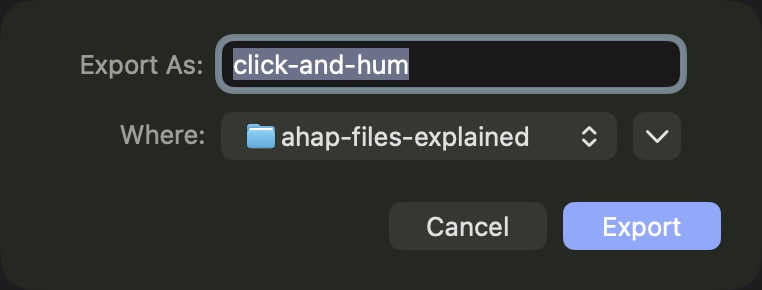
Hand a developer the AHAP file or the Swift code. The Web Vibration export carries the rhythm only, with no intensity or sharpness. If a pattern plays audio, the Swift Code and Web Vibration exports tell you they leave it out before they write the file.
Share it with other designers
Publish the haptic from the app. On the Mac, choose File, then Publish. On an iPhone or an iPad, use the More menu.
Haptrix asks you to sign in and to accept the current terms. Then it checks the pattern and asks for the details: a title and a description, and optionally tags, a category, platforms and a licence. You also choose who can see it. A private haptic can be seen only by you.
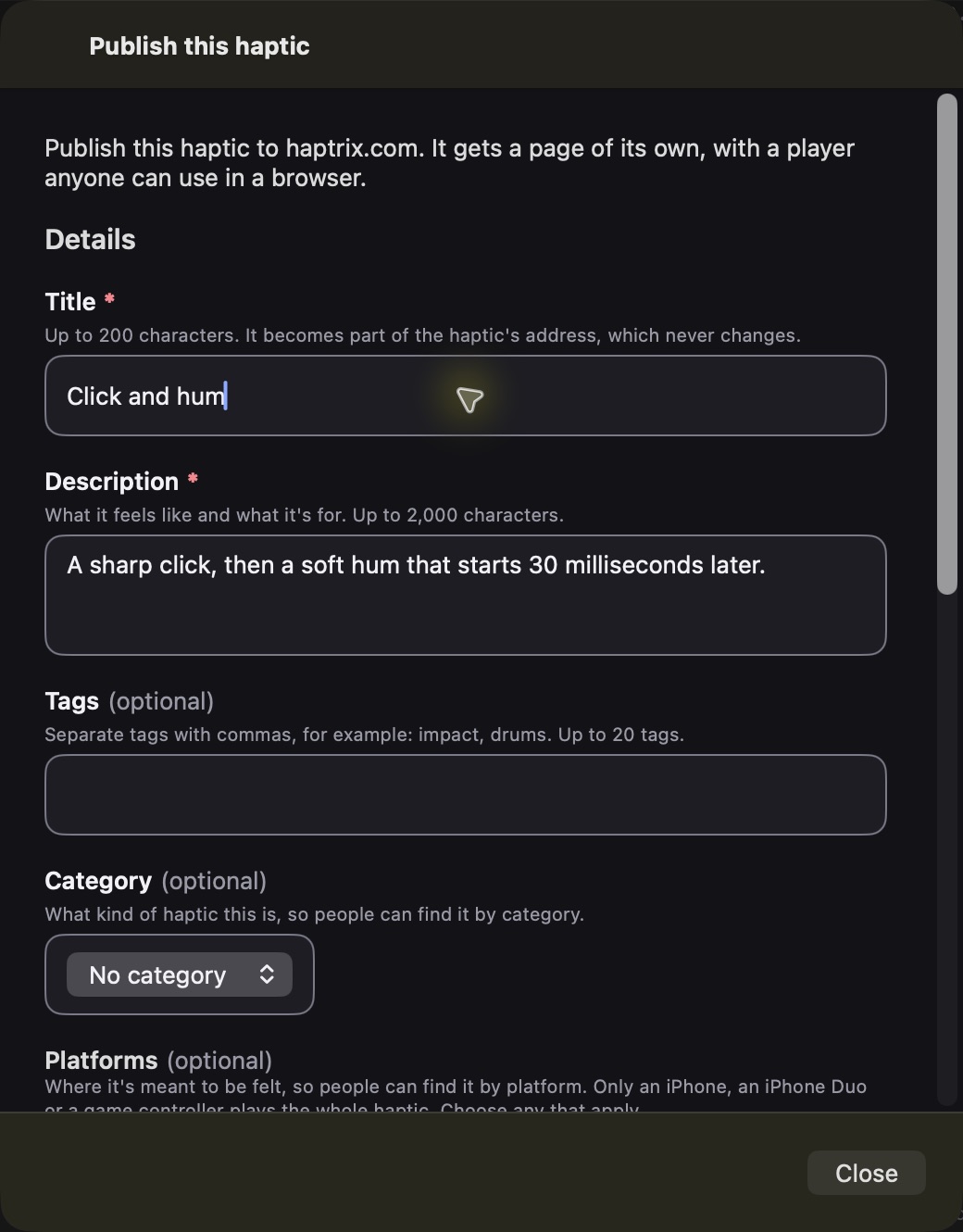
A published haptic gets a page of its own. The page has a player that anyone can use in a browser, and a link that opens the haptic in Haptrix. In a browser you can see and hear it. To feel the whole haptic, open it in Haptrix on an iPhone.
Browse what other designers have made in the library.
Where to go next
Read AHAP files explained to see what Haptrix wrote when you exported. The help pages explain events, envelopes and parameter curves. Keep the original pattern, change one detail, and compare the two on your iPhone.
More to read
Design haptics in Haptrix
Free, for Mac, iPad and iPhone: the editor, export and publishing included.
New articles by email
Email updates are not switched on yet.